
How to manage client brands in cyrqle as an agency
Manage multiple clients on one influencer platform: link client brands in cyrqle, set per-member access, Act As, set fees and export white-label reports.
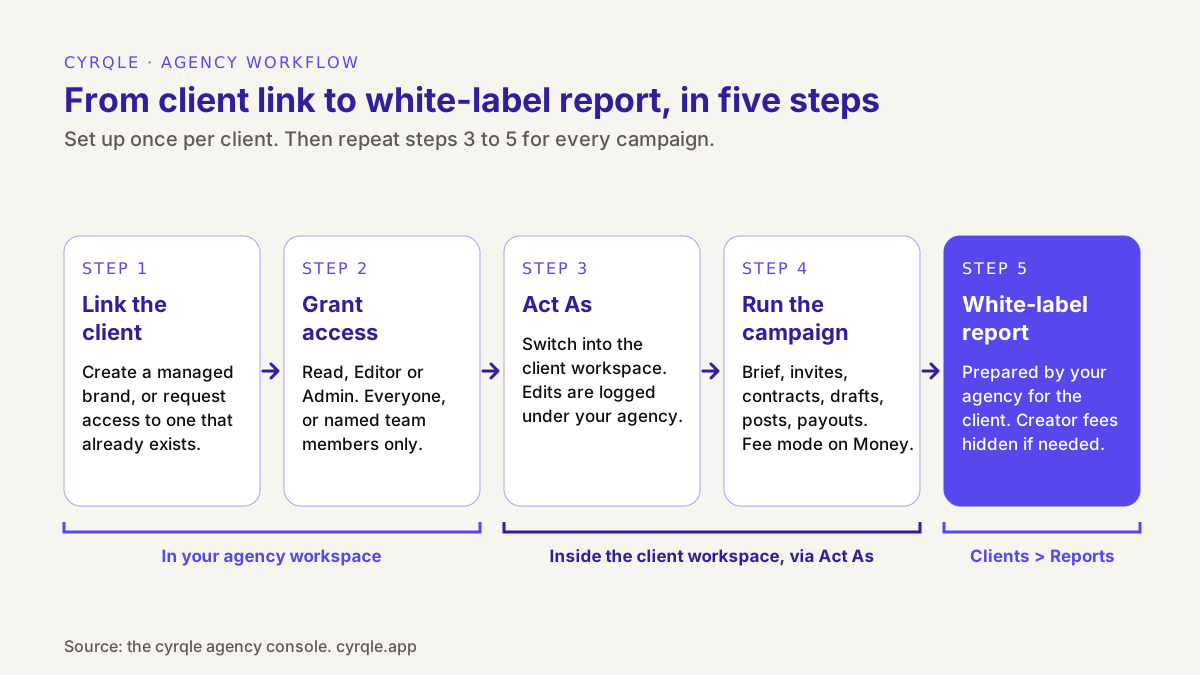
To manage multiple clients on an influencer platform, give every client its own workspace, link each one to your agency, and control access, fees and reporting per client. In cyrqle that is the Clients list in your agency workspace: you link a client brand, choose who on your team can act on it, switch in with Act As to run the work, and export reports in your agency's name. This guide walks through each step with the exact labels in the app.
It assumes you already have an agency workspace. If you are still choosing a tool, read what influencer software for agencies must do first. If you need the client-facing side of reporting, see the white-label reporting checklist.
What do you need before you start?
- An agency workspace. At sign-up, the Agency role is for teams that "manage multiple brand clients and need a multi-brand console". A brand workspace cannot hold clients.
- Your team inside the agency workspace. Invite colleagues to the agency first. You can only scope client access to people who are already agency members.
- For each client, one fact: does the client already have a cyrqle workspace? That decides Step 2 or Step 3.
- Your commercial terms per client: your fee or markup, and whether the client may see creator fees. Have them agreed in writing before the first campaign.
- A data processing agreement. When you run campaigns for a client, you handle creator personal data on the client's behalf. Under Article 28 of the GDPR, processing by a processor "shall be governed by a contract". It is not legal advice: ask your lawyer which role your agency plays for each client.
How do agency workspaces and client workspaces fit together?
An agency workspace and a client workspace are separate. The client's campaigns, creators, contracts, content and attribution data live in the client's workspace. Your agency workspace holds the link to it, your team, and your view across clients. When a client leaves, the link ends and the client keeps its data. The glossary entry on the workspace as the tenancy boundary explains the idea in one paragraph.
Step 1: Open the Clients list
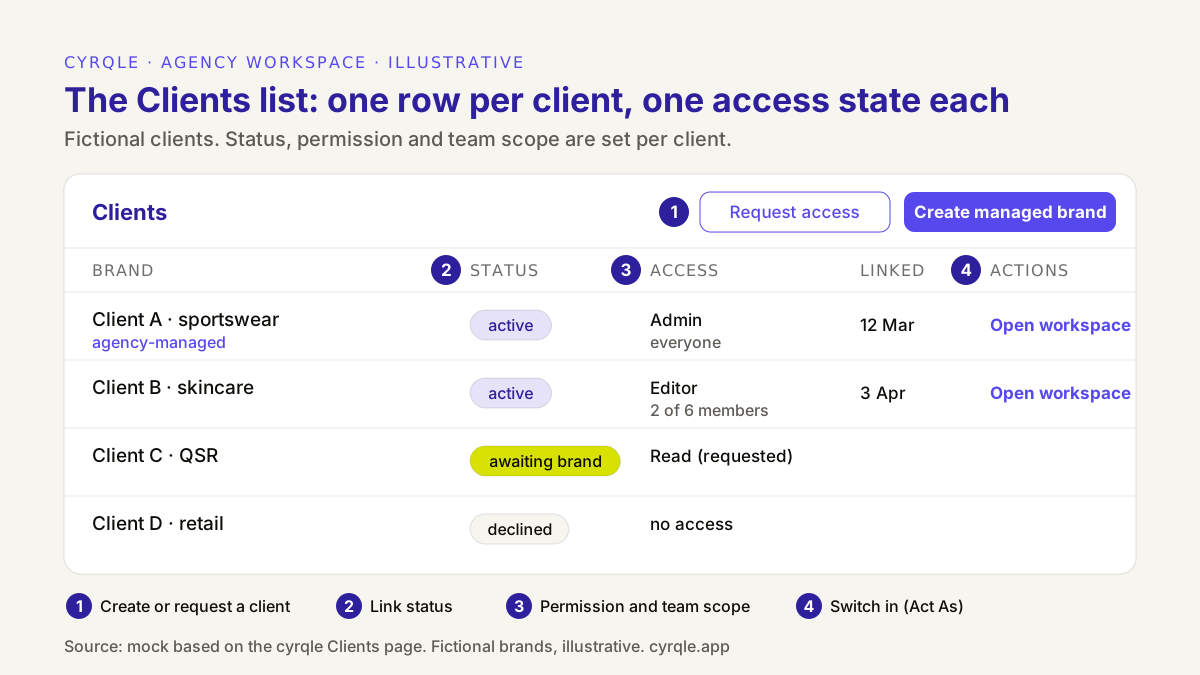
Click Clients in the navigation of your agency workspace. The page lists every brand your agency manages. Switch between cards and table view at the top. The table has five columns: brand, status, access, linked and actions.
Each link has one of three statuses:
| Status | What it means | What you can do |
|---|---|---|
| active | The link is live | Open the client, Act As, export reports |
| awaiting brand | You requested access and the brand owner has not answered | Wait, or follow up with the brand outside cyrqle |
| declined | The brand owner declined the request | Nothing in the workspace; agree terms with the client and request again |
Links that ended move to previous links, with the date they were unlinked. The agency-managed badge marks brands that your agency created (Step 2).
Step 2: Create a managed brand for a client with no account
Use this when the client is not on cyrqle yet. You set up the workspace on the client's behalf; the client does not need an account.
- On Clients, click Create managed brand.
- Enter the Brand name.
- Check the Handle. It becomes the workspace address. The field shows free or taken.
- Optional: enter the Brand contact email. cyrqle creates an owner invitation so the client can claim ownership when they are ready.
- Click Create managed brand.
The workspace is created and goes live at its handle. If you gave a contact, you also get an invitation link to share with the client.
Until the client claims ownership, you and your agency team have Admin access through the link. Once the client claims it, the client becomes the owner and can change your access or remove your agency, like any linked brand. Agree that in your contract before you hand over the invitation.
Step 3: Request access to a brand already on cyrqle
Use this when the client already has its own workspace.
- On Clients, click Request access.
- Enter the Brand handle (the client's workspace address).
- Pick the Requested permission: Read, Editor or Admin.
- Click Send request.
The row appears as awaiting brand. The brand owner sees the request in their own workspace under Settings, in Linked agencies, and clicks Accept or declines. From the same section the brand can adjust your access later or click Remove agency, which ends your access immediately.
Ask for the lowest level that lets you do the job. Most agencies running campaigns need Editor. Request Admin only if the contract makes you responsible for contracts, brand terms or money actions on the client's side.
Step 4: Choose the permission level per client
Each client link carries one permission level. These are the definitions shown in the app:
| Level | What the agency can do in the client workspace | Typical use |
|---|---|---|
| Read | "View campaigns, drafts, reports. Can't change anything." | Reporting-only retainers, audits, a pitch period |
| Editor | "Run campaigns + manage drafts. Can't change billing or members." | Day-to-day campaign management |
| Admin | "Full access except deleting the workspace." | Full outsourcing, including contracts and money actions |
Inside a campaign, cyrqle reserves some actions for admins, such as sending contracts for e-signature, linking brand terms and funding the campaign. If your agency signs contracts and funds campaigns for a client, you need Admin on that client. The first-campaign guide lists which steps need which level.
Step 5: Set per-member access per client
By default, everyone in your agency can act on a client at the link's permission level. To limit a client to named people:
- Open the client from Clients.
- Find who can act on this client and click change.
- Tick the team members who should have access. Each member can inherit the link's level or be set to no access.
- Review the pending changes and click Apply changes.
The summary then reads, for example, "2 of 6 team members can act on" the client. To open the client back up to the whole agency, untick everyone.
Worked example: six people, three clients
An agency of six people manages three clients (illustrative). Two of the clients compete in skincare, so the agency keeps their teams apart.
| Client | Link level | Who can act | Why |
|---|---|---|---|
| Client A (sportswear) | Admin | Everyone (6) | Full outsourcing; anyone may cover holidays |
| Client B (skincare) | Editor | Ana, Luis (2 of 6) | Competes with Client C; rates must not cross over |
| Client C (skincare) | Editor | Marta, Jordi (2 of 6) | Competes with Client B |
The account director who signs off all three can be ticked on every client. Everyone else sees only the clients they work on. This is the confidentiality line most clients in the same category expect.
Step 6: Act As the client to run the work
Act As switches you into the client's workspace so you operate inside it, with your own login.
- From your agency Dashboard, click Act As on a client card. Use View for a read-only look that keeps you in the agency context.
- From the Clients list, click Open workspace, or use Act As on the client's page.
While you act as a client, the app shows a strip that reads "acting as" the client "via" your agency, with your access level. Edits are recorded under your agency account in the audit log. Click return to agency to go back.
Inside the client workspace you work exactly as the brand would: campaigns with the brief, invites, contracts, drafts, posts and payouts. If you create a campaign from the agency side and manage more than one client, cyrqle asks you to pick the Client first, because every campaign belongs to a brand.
Step 7: How do you set per-client commercial terms and fees?
Your fee is part of the money flow, not a separate spreadsheet. Three places hold it.
The payout split. Each creator payout splits into four parts: creator net, cyrqle commission, agency fee and tax withheld, with a statement or invoice per payout. If your agency has its own connected Stripe account, the agency fee on each payout is transferred to it. Creators in Europe and the US are paid to their bank through Stripe Connect, in EUR. Elsewhere, the brand pays by bank transfer and records it. See compensation and contracts.
The agency margin on a campaign. On a client campaign with agency terms, the Money tab shows agency operators an agency margin card. The brand never sees this card. It shows one of three pricing modes:
| Mode | What the client (brand) sees | What the creator sees | What your agency sees |
|---|---|---|---|
| Hidden mode | The gross amount only | Never the margin | Everything |
| Transparent | The full split, including your cut | Never the margin | Everything |
| Margin applied | The gross amount | A rate with your margin already built in (gross-up) | Everything |
Worked example (illustrative): a client campaign of EUR 10,000 with a 20% agency margin. The card shows gross EUR 10,000, net to creators EUR 8,000 and agency cut EUR 2,000. In Hidden mode the client sees EUR 10,000 as the campaign cost. In Transparent the client sees all three figures. The fee and mode are set per client campaign rather than typed into the Clients list, so agree them with the cyrqle team when you set up the client, and check the card on the first campaign. For how to price the fee itself, see retainer, percentage of spend or performance pricing.
The roll-up across clients. In your agency Billing, the Client money section shows funded, fee, net, paid out, commission and wallet balance for every brand you cover, the same figures each client sees on its own billing page.
Step 8: How do you hide creator fees from client reports?
Many agency contracts keep the individual creator rate confidential. cyrqle handles this per campaign and per creator.
- For the whole campaign: on the campaign's Brief tab, the Client-facing fee visibility card has one switch, Hide creator fees from client reports. It takes effect immediately for every creator on the campaign, and new creators inherit it.
- For one creator: open the creator from the Creators tab and set the fee to Hidden from client or Visible to client. When you invite a creator, you can tick Hide fee from client reports.
Your internal payout management always shows the full fee. When fees are hidden for the whole campaign, the campaign report also leaves out spend, CPM, cost per engagement, cost per view, ROAS and payout figures, so a client cannot work the fee back from them.
Step 9: How do you export white-label reports for a client?
- In your agency workspace, open the client from Clients.
- Open Reports. The page reads "White-label reports built on" the client's data, "generate, then share with your client".
- Generate the report you need: Brand performance, Campaign report, Creator media kit, Creator list report or Cluster report.
- Download it as PDF, or export the tables as CSV.
On a client report, the cover reads "Prepared by" your agency "for" the client, and the page header names your agency. Two limits to know: the reports carry your agency's name, not your logo or colours, and a small cyrqle mark stays on the cover. There is no rebranded login or custom domain. For live ROAS, use the campaign Attribution tab rather than the PDF. Reports and exports describes each report, and the agency client report template gives you a structure for the monthly client deck.
What if something does not work?
| Problem | Likely cause | Fix |
|---|---|---|
| "No workspace exists with that handle" | Typo, or the client's handle differs from its brand name | Ask the client for the exact handle in its workspace address |
| "That handle is taken" when creating a managed brand | Another workspace uses it, maybe the client's own | Ask whether the client already has an account; if yes, use Request access |
| A colleague cannot see a client | The client is scoped to named members | Open the client, click change under who can act, tick the colleague |
| You cannot send a contract or fund a campaign | Your link is Editor | Ask the brand owner to raise your level to Admin under Linked agencies |
| The row is stuck on awaiting brand | The brand owner has not opened the request | Tell the owner to check Settings, Linked agencies in their workspace |
| The owner invite was not sent | Sending failed after the workspace was created | Re-issue it from the brand's Team page |
How cyrqle helps
The steps above are the agency console described on cyrqle for agencies: one Clients list, client links with Read, Editor or Admin, access scoped to named team members, Act As with an audit trail, per-client fees in the payout split, and white-label reports with fee hiding. The work inside each client runs in campaigns, and the report set is on reports and exports.
Some honest limits. The cross-client creator view and an agency-side mirror of each client's campaign list are not built yet; for now you switch into the client to manage its creators and campaigns. Settlement is in EUR only. Rev-share commission owed is calculated and shown, not paid automatically. Agency pricing is not public: it is a custom monthly base plus usage, so talk to us about pricing. If you want to test the setup with a client before you commit, the 30-day pilot plan shows how to scope it, and you can book a 30-minute agency demo to see the Clients list, Act As and a white-label export end to end.
FAQ
Can a client see the other brands my agency manages?
No. Each client is a separate workspace. A client sees its own workspace and the agencies linked to it under Linked agencies, not your other clients. Inside your agency, you can also limit each client to named team members so competing accounts stay apart.
What happens when a client leaves my agency?
The brand owner clicks Remove agency in Linked agencies. Your access stops immediately and the link moves to previous links in your Clients list. The client keeps its campaigns, contracts, content and data in its own workspace.
Does the client need a cyrqle account before I can start?
No. Create managed brand sets up a workspace on the client's behalf, and your agency has Admin access until the client claims ownership. Add a brand contact email if you want cyrqle to create an owner invitation for later.
Are edits I make while acting as a client traceable?
Yes. While you act as a client, the app shows that you are acting via your agency, and edits are recorded under your agency account in the audit log. If you accept terms on behalf of a creator, the log records it as a manual override with your name.
Can I hide my agency margin and the creator fees from the client?
Yes, with two separate controls. Hidden mode on the campaign's agency margin shows the client the gross amount only. Hide creator fees from client reports removes individual creator fees, and the figures they could be worked back from, from client-facing views and reports.
How many clients can an agency workspace manage?
The agency page lists unlimited client workspaces. What you pay depends on the agency contract, which is a custom monthly base plus usage, so confirm what counts as usage for your client mix on the pricing page.
Related material.
Influencer campaign report template for agencies: a one-page client report in seven blocks plus an appendix, in slide and sheet form, with a worked example.
Influencer marketing proposal template for agencies: eight sections from objective to fees, a creator shortlist with labelled estimates and a Q4 worked example.
A step-by-step checklist for brand and agency operators launching their first creator-commerce program on a Creator Commerce OS — discovery, briefs, attribution, compensation, payout.